Quick Start
Obtain the Application
This is a paid software. Please obtain the installer and registration code before use.
Step 1: Get the Application Package
Contact the author to get the latest installer:
- Email: guhuo13@gmail.com
- Email Content: Briefly describe your needs and specify your operating system (Windows/macOS)
Step 2: Get the Registration Code
The author will generate a registration code based on your device information and send it to you via email.
Step 3: Activate the Registration Code
- Install and open the application
- Go to "Settings" page
- Click "Activate Registration Code"
- Enter the received registration code and confirm
After successful activation, the application can be used normally.
Prerequisites
Before you begin, make sure you have completed the following:
- Install the App — Follow the Windows Installation Guide or macOS Installation Guide to install the application
- Install ADB — Android Debug Bridge is required for connecting to Android devices, see the ADB configuration in the installation guide
- Connect Device — Ensure your Android device has USB debugging enabled and is connected to your computer via ADB
5 Steps to Complete Color Finding Script
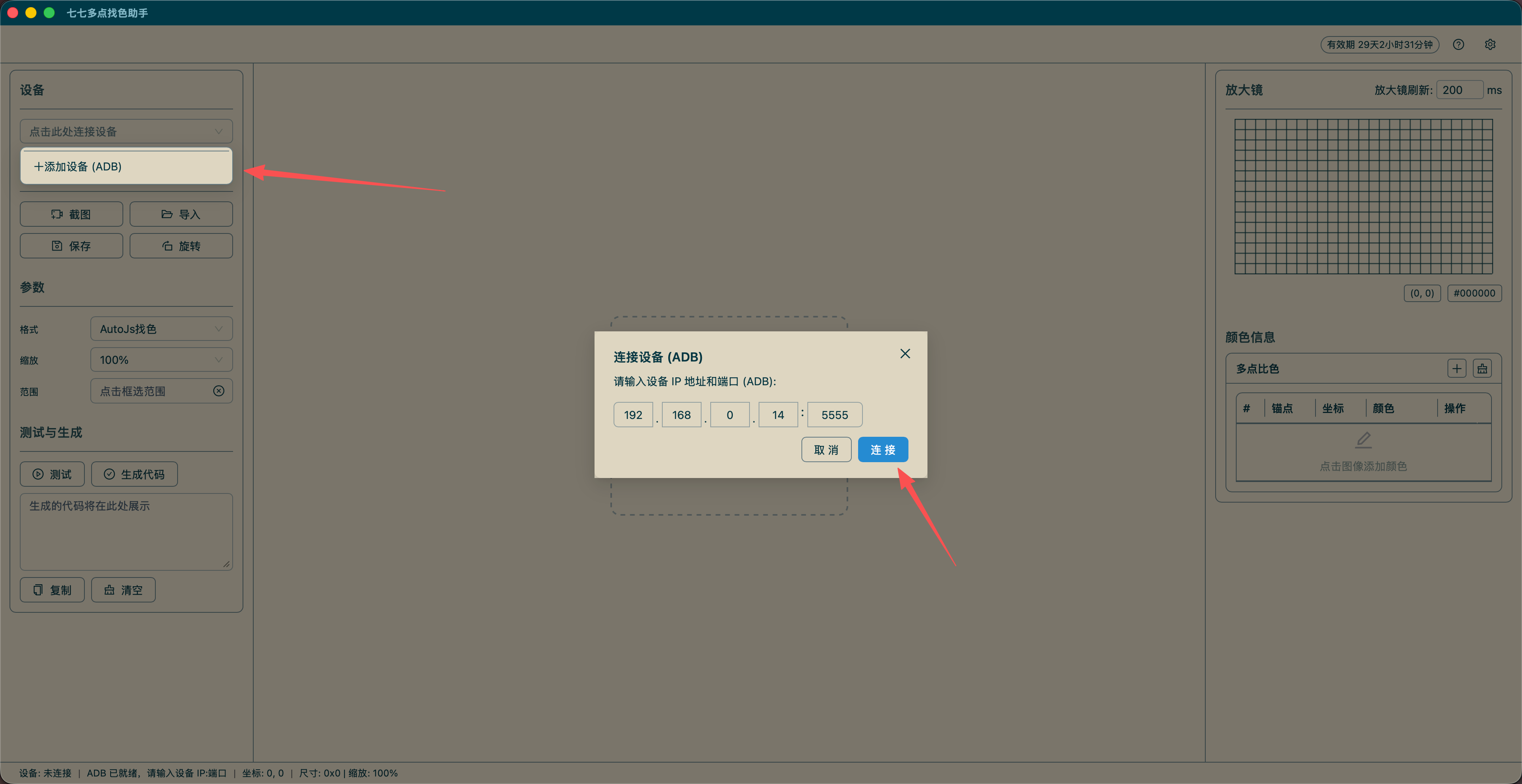
Step 1: Connect Device
- Select device from the top dropdown, or click "Add Device" to enter
IP:port(e.g.,192.168.1.100:5555) - Click "Connect" button
- Status bar shows "Connected" when successful
Step 2: Screenshot
- Ensure device is connected
- Click "Screenshot" button to capture device screen
- Screenshot displays in the center image area
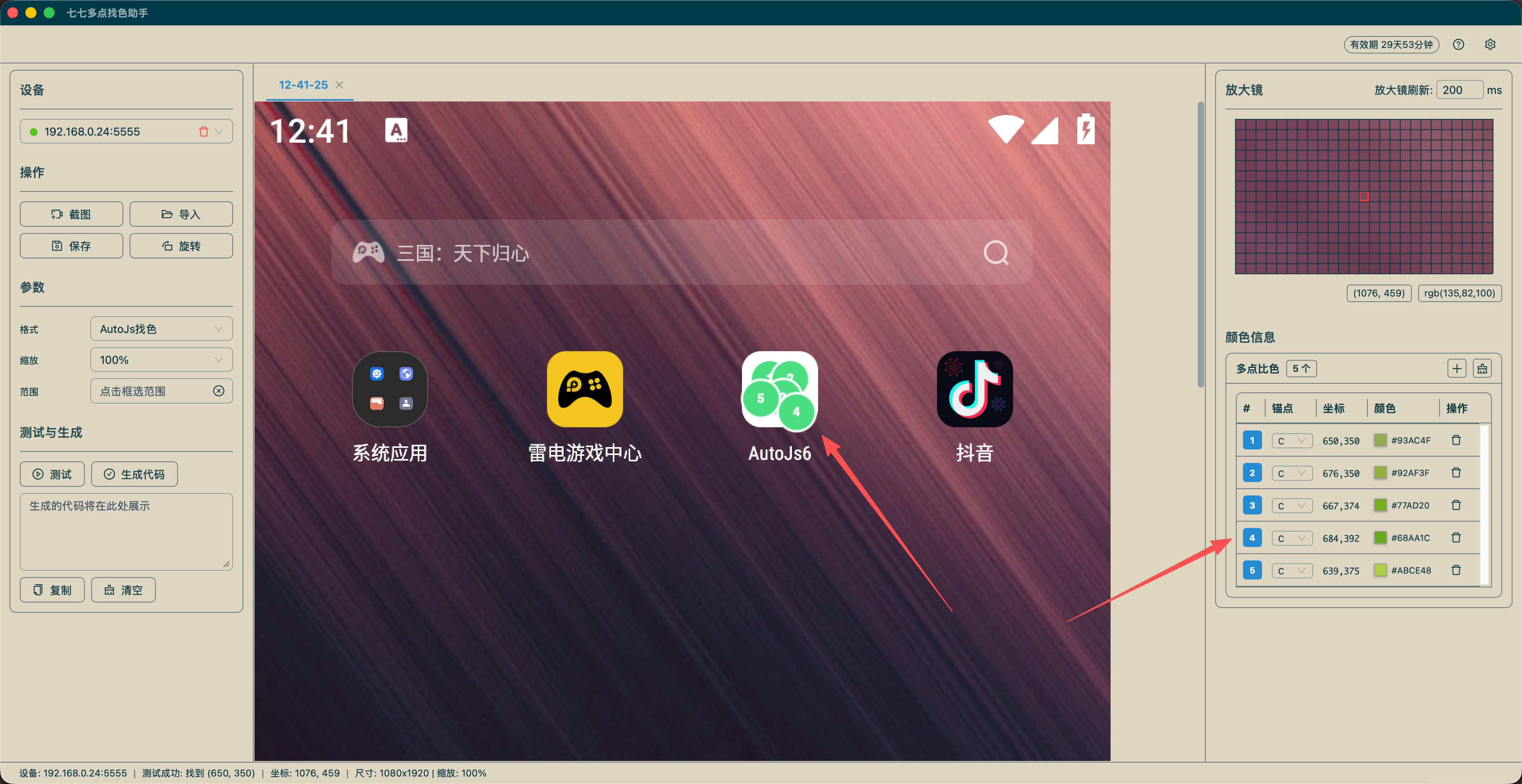
Step 3: Mark Color Points
- Click target position on image to add color point automatically
- Set anchor type (None/L/C/R) in the color list on the right
- Click color value to copy hex color code
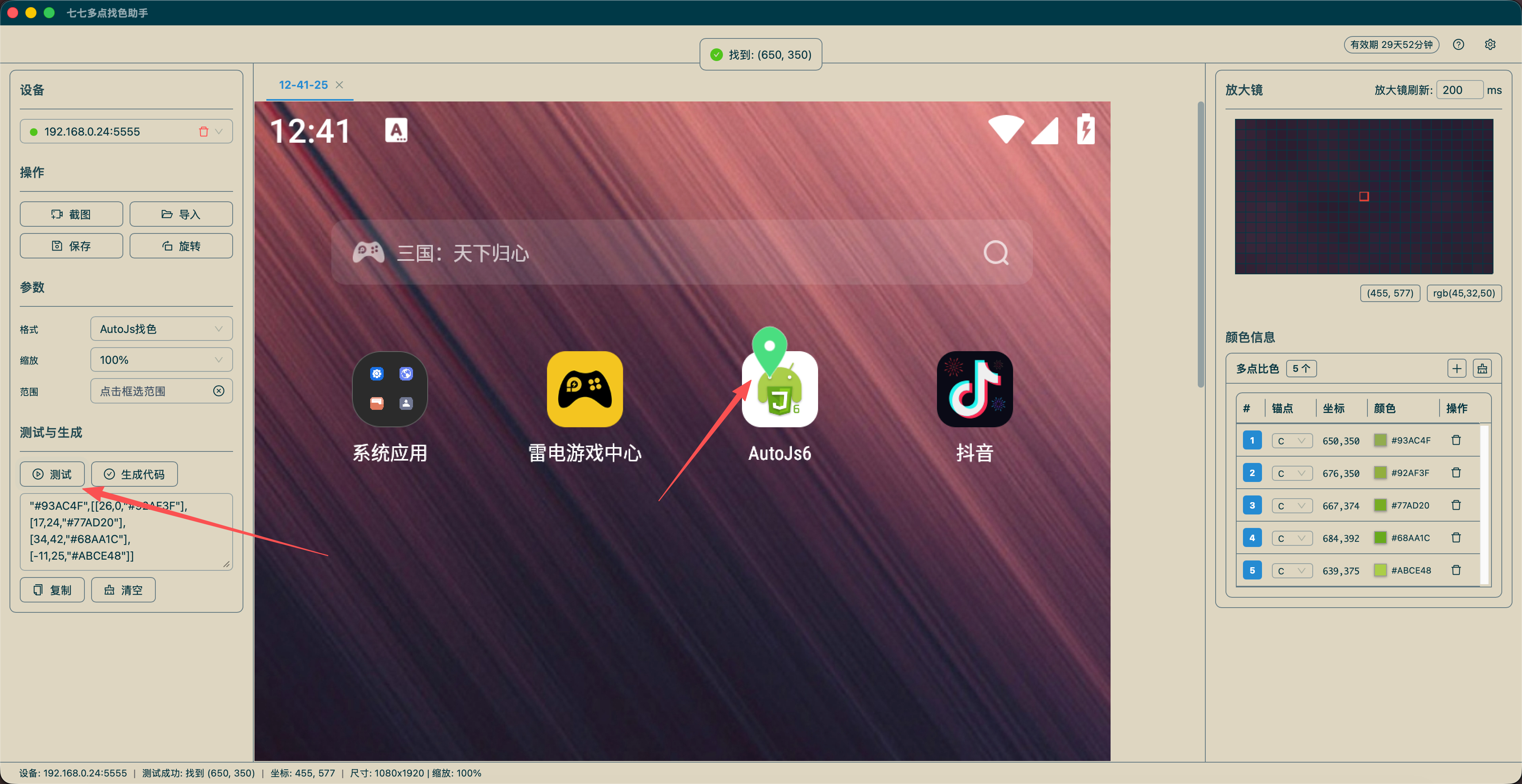
Step 4: Test
- Click "Test" button after setting up
- Check result: "Found: (x, y)" or "Not Found"
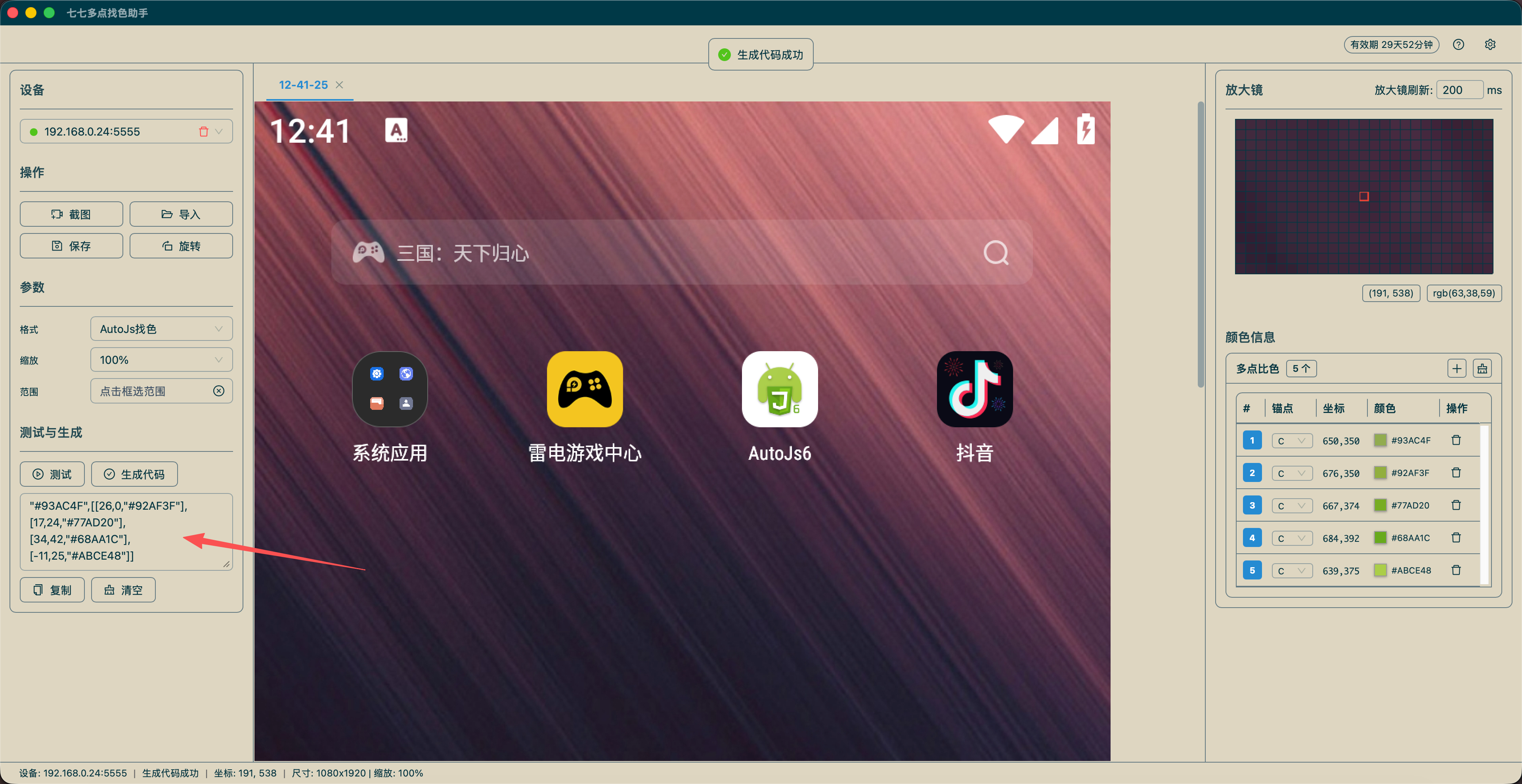
Step 5: Generate Code
- Select code format (AutoJs FindColor/AutoJs CompareColor/DM FindColor/Anchor FindColor/Anchor CompareColor)
- Click "Generate" button
- Click "Copy" to copy code to clipboard